DogWalker Pro
This app is for the professional dogwalker.
It helps keep track of clients, dogs and scheduled walks. Also it
contains several useful features to ease the workload and improve
customer satisfaction.
USING THE APP
ENTER NEW PASSWORD AND EMAIL
The first step is to set your email and choose a password. This is
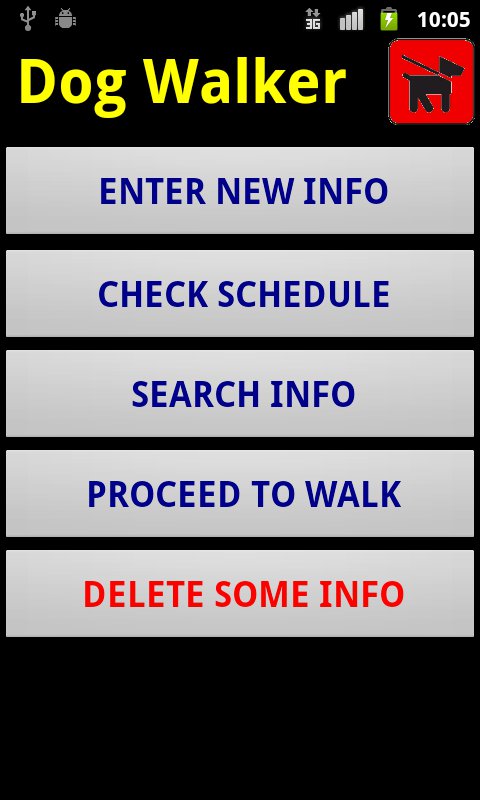
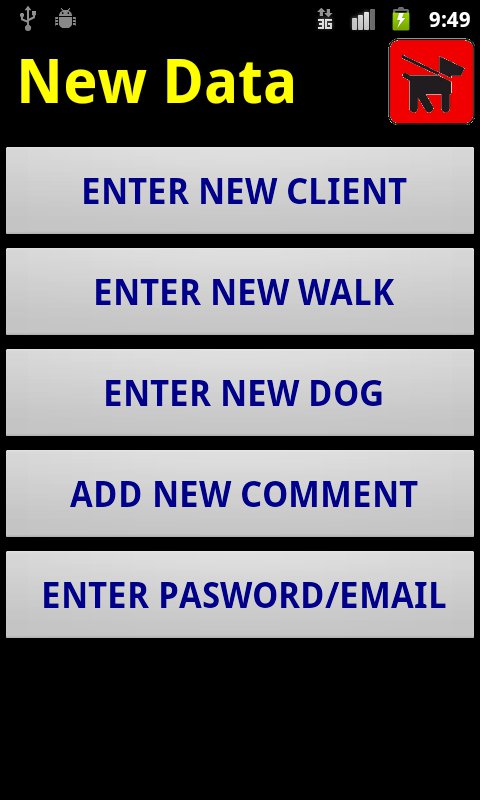
done by selecting Enter New Info on the landing page, and then on the New
Data page select the lowest button Enter Password/Email. On the Save Your
Settings page, enter your email and password into the two white Text
boxes. After each is entered, tap the red Save buttons below the Text
boxes to record your choices. To review them, you can tap the green Review
buttons to see the settings.
ENTER NEW CLIENT
Back on the New Data page, you can now begin to enter your clients.
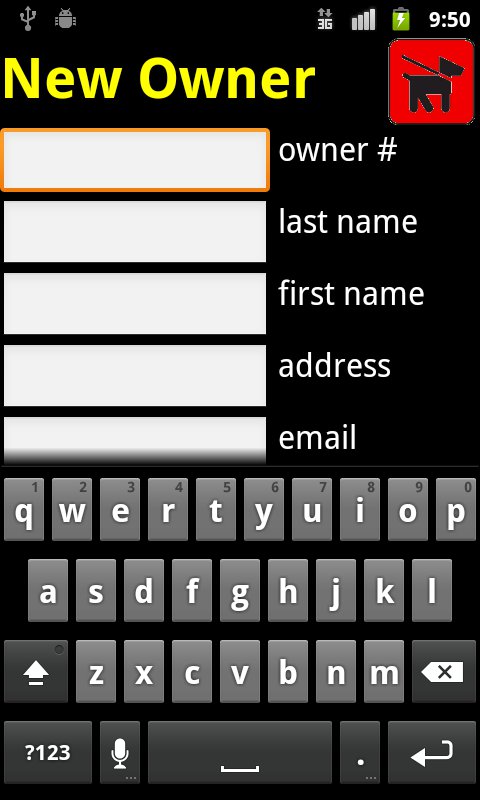
Tap Enter New Client and a form appears with various boxes to fill in with
details about the client. Pick an owner number different than your other
clients. This form is designed to be filled in at the client's address.
Then latitude and longitude location settings are then filled in
automatically using the GPS of the phone.
After all the other boxes are filled in, tap the button Add New Owner to
save the information. An email will be sent automatically to your email
to confirm the recording of a new client.
Note: If you wish to fill in the form elsewhere, you will need to
determine the lat/long of the client address using Google Earth on your
home computer. To do this you firsr center the Earth map on the client
address and then tap the Add menu on Google Earth. Select Placemark and a
box appears showing the latitude and longitude. Copy these into the
lat/long Text boxes back on your phone (withot the circular degree sign at
the ends). Then tap the bottom button Create Owner Remotely to record this
client.
ENTER NEW DOG
Next step is to create a record for each dog. Make sure the dog's
owner has been entered first and note the owner number. The Dog file is
also reached via the Enter New Info button on the app landing page,
followed by tapping Enter New Dog on the New Data page. Fill in the
blanks on the form that appears and then tap the red button at the bottom
of the New Dog page to add that dog. An email will be sent to you to
confirm the addition of that dog.
ENTER NEW WALK
Once you have the owners and dogs set up, you can begin scheduling the
dogwalks. On the landing page tap Enter New Info, then on the New Data
page tap Enter New Walk. The Plan Walk form assumes that the schedule will
usually be repetitive from week to week, so you do not have to enter a
date, just the day and time. The time is based on a 24 hour clock with 900
representing 9:00 AM and 1400 is 2:00 PM.
You must enter each dog separately and the tap Add New Dog. An email will
be sent to you to confirm the addition of that dog to the dogwalk schedule
If a dog will not be joining a walk, make sure to delete that dog from the
walk using the Delete Dogwalk function as explained later.
CHECK SCHEDULE
Once your dogwalks are entered and saved, you can review them by
tapping the Check Schedule button on the app landing page. Then on the
Search Walks page, select the day and time and tap the See The Dogwalks
DELETE SOME INFO
Tapping the Delete Some Info button on the app landing page gives you
several delete options.
DELETE A WALK
The most frequently used is Delete a Walk, which should be done
everytime a dog will not be participating in their usual walk time. Choose
the time of the walk and enter the Dog Number, then tap Delete This Walk.
An email will be sent to you to confirm this change.
DELETE A DOG
The option to Delete a Dog is similar to the above. When you delete a
dog, all the walks that dog is scheduled for are automatically removed
too. An email is sent to you to confirm the deletion of a dog from your
records.
DELETE AN OWNER
When you delete an owner, all their dogs are automatically deleted
from the records, along with all the dogwalks which that owner's dogs were
scheduled for. So be careful not to use this option unless you really mean
it.
To delete an owner, that owner's last name must be entered, along with the
owner number, to reduce the chance of accidental deletion.
When the owner is deleted, an email is sent to you to confirm the action
was completed.
DELETE A COMMENT
The Delete a Comment button removes only those comments which are made
about a dog during a dogwalk from the main Map Page, which is explained
below.
NEW PASSWORD/EMAIL
This button at the bottom of the Delete Data page is uded only if you
want to change your email or password.
SEARCH INFO
The Search Info button on the landing page of the app leads to another
page with four search options: All Clients, One Client, All Dogs and One
Dog.
ALL CLIENTS
This opens a web page with a summary of all the dog owners, which
includes their user numbers.
ONE CLIENT
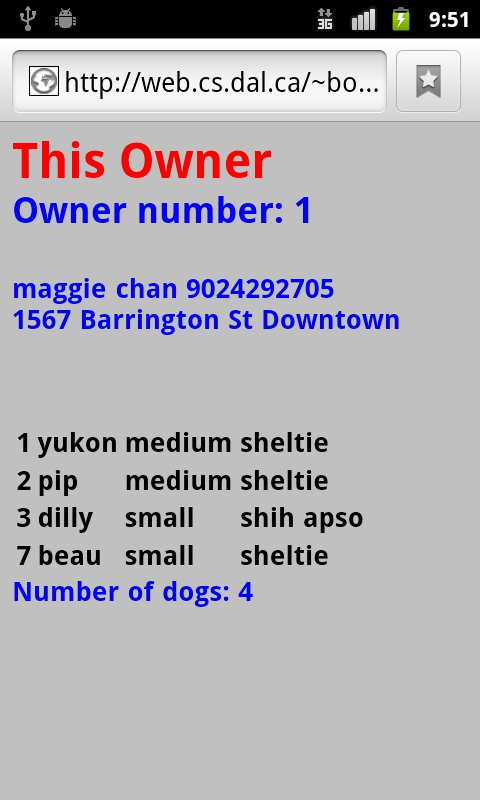
This leads to a page which asks for the Owner Number. After you select
this number, tap Review This Owner to see a detailed summary of
information about this owner, including phone number, email, address and
the dogs they own. (If you cannot remember the owner number, tap the lower
button, Review All Owners, to refresh your memory.)
Note: The phone numbers shown either in All Clients or One Client
can be tapped, which brings the number up ready to speed dial on your
phone without entering the digits
ALL DOGS
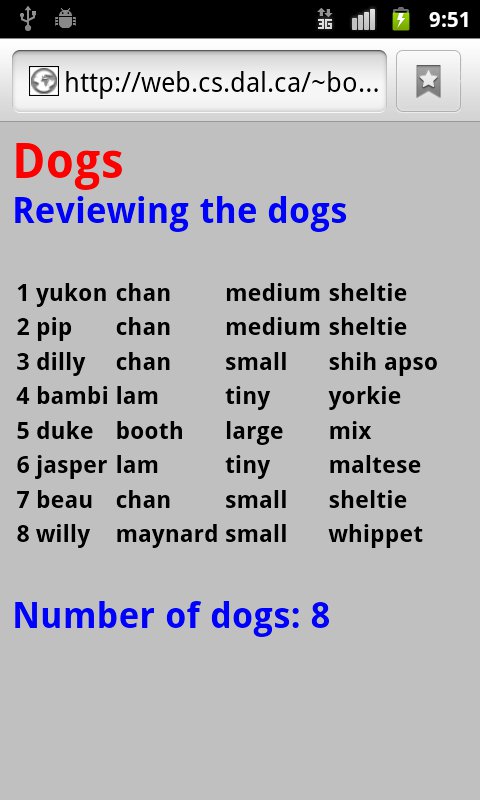
This opens a web page with a summary of all the dogs, which includes
their dog numbers.
ONE DOG
This leads to a page which asks for the Dog Number. After you select
this number, tap Review This Dog to see a detailed summary of information
about this dog, including comments made about this dog during the
dogwalks. (If you cannot remember the dog number, tap the lower button,
Review All Dogs, to refresh your memory.)
PROCEED TO WALK
The button labelled Proceed To Walk on the app landing page leads to
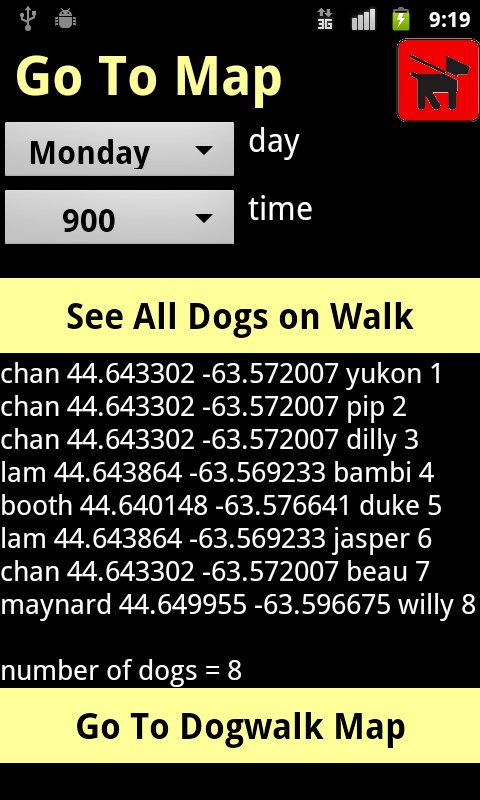
the Main Map Page. First it takes you to the Go To Map page where you
input the day and time of the walk you wish to begin. The See All Dogs On
Walk button displays all the dogs scheduled to walk in that time slot.
Check this first to ensure that the list is correct.
When you are sure the list is accurate, tap the lower button Go To Dogwalk
Map. This opens the Main Map Page.
MAIN MAP PAGE
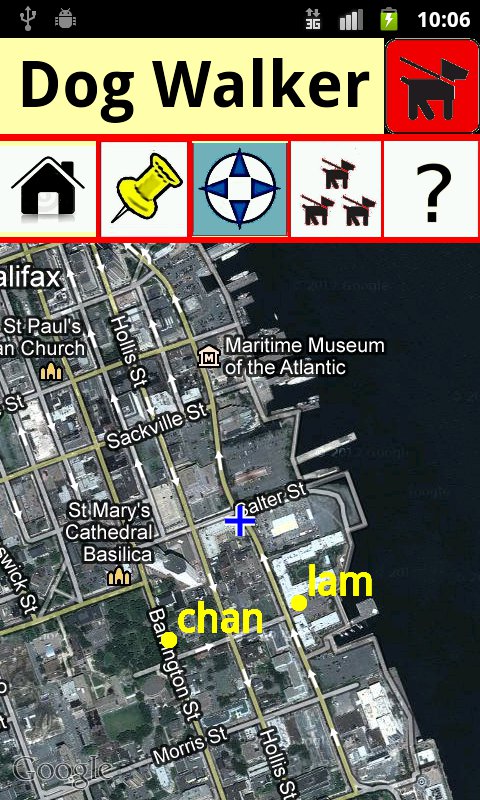
The map opens centered on your current location. The names shown in
yellow are the owners of the dogs you will be walking at that time. The
rrelated yellow dots are the positions of their homes where you will pick
up the dogs.
There are five icons in the second row which provide various functions.
HOUSE ICON
This button is to assist when you are picking up the dogs prior to a
walk.
The House icon recenters the map to the address of the owner who is
closest to your current location. Tapping it again moves to the owner
closest to the original owner, and so on as you keep tapping the icon.
After an address has been indicated, the yellow dot turns blue. If the
owner has more than one dog joining the walk, the map will center more
than once at that location.
THUMBTACK ICON
This is for entering a comment about an individual dog during the
walk. These comments are emailed back to your address as well as being
added to the record for that dog. These comments can be viewed uising the
One Dog search on the Search Info page or deleted using Delete Comment on
the Delete Info page.
COMPASS ICON
This recenters the map to your current location. This is not done
automatically, except when the map page is first opened.
THREE DOGS ICON
This important icon first recenters the map to your current location
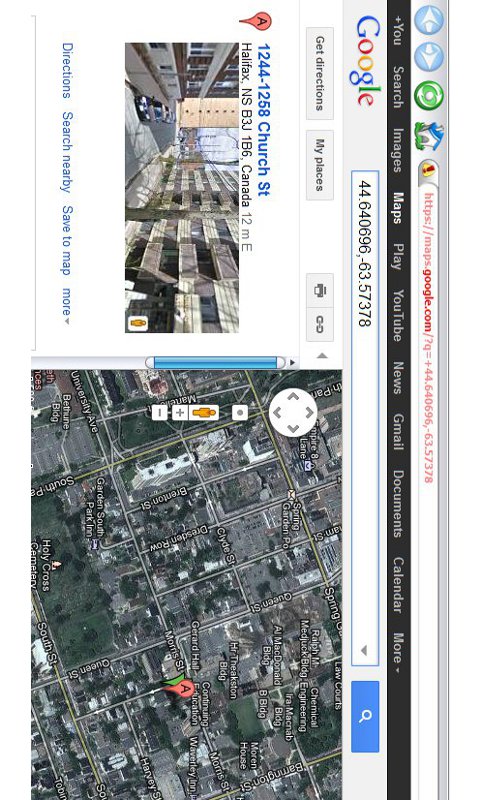
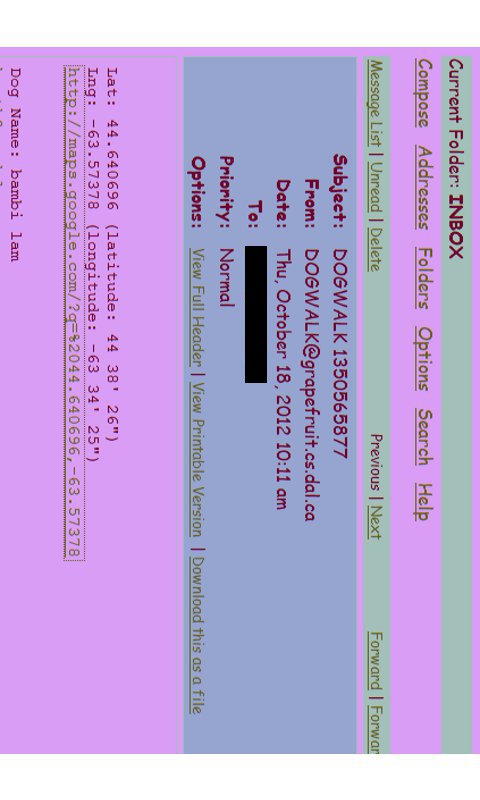
and then sends an email to each owner of the dogs you are walking. These
emails contain a link to Google Maps showing the exact location where the
dogs have been walked. This should be pressed while you are still at the
walk site. This icon turns red after the emails have been sent.
QUESTION MARK ICON
This leads to the Search Info page in case you need to review any
details about the dogs or owners.
COLOR MATCH AND OTHER APPS